
A Practical Guide to Ergonomic Workstation Setup
A sore neck at 3 p.m., tingling hands after a long report, or a low back that feels worse after sitting than after a workout can all point to the same issue: your work area may not fit your body. This guide to ergonomic workstation setup focuses on practical adjustments that can reduce unnecessary strain and make work more comfortable, whether you are at an office desk, working from home, or moving between locations.
Ergonomics is not about buying every new office accessory. It is about arranging your chair, desk, screen, and work habits so your body can stay in more natural, supported positions. Small changes can matter, especially when they are repeated over many hours each week.
Start With Your Chair and Sitting Position
Your chair is the foundation of a seated workstation. Before adjusting your monitor or keyboard, make sure your body has stable support from the floor up.
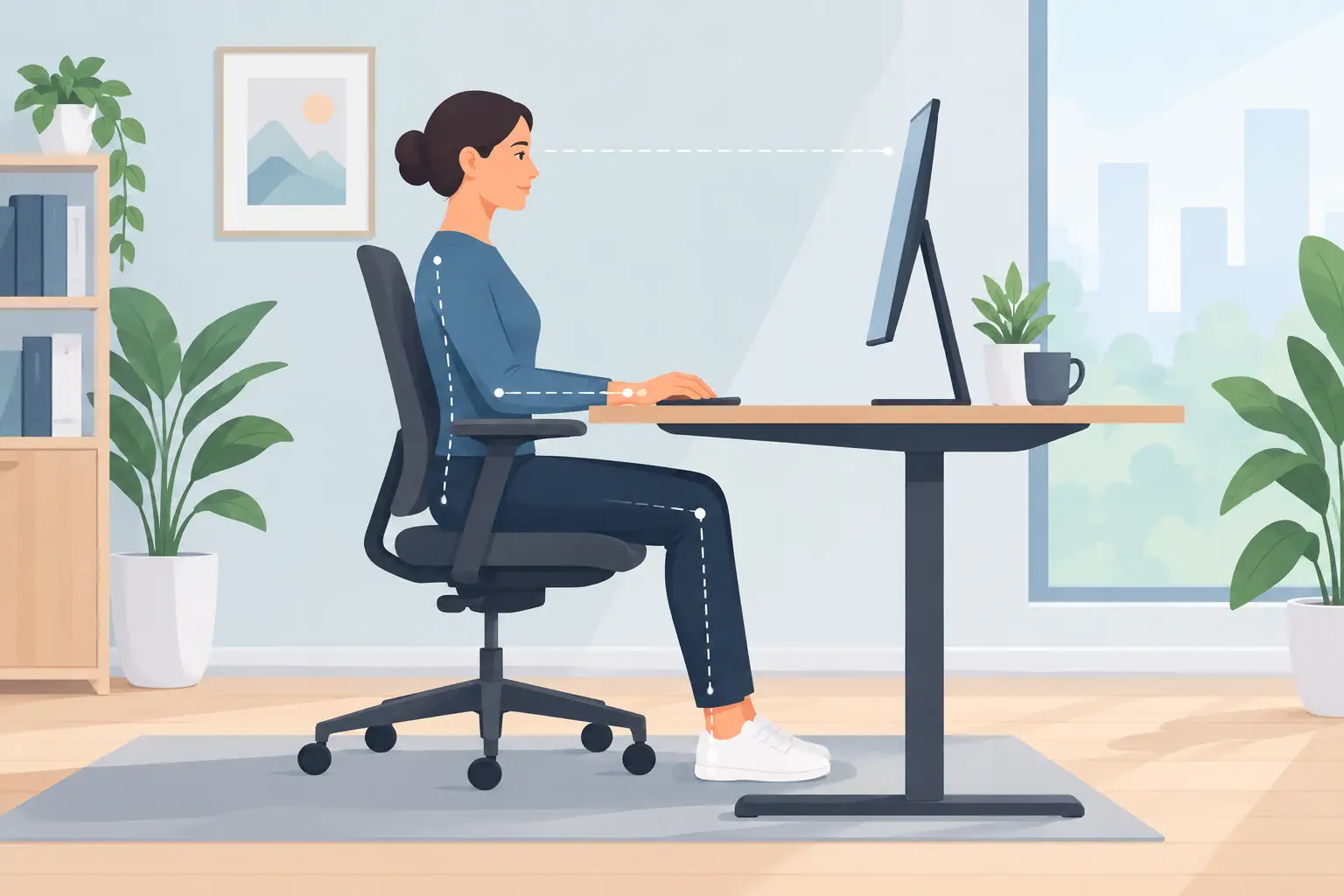
Set the chair height so your feet rest flat on the floor and your knees are roughly level with, or slightly lower than, your hips. If your feet do not reach comfortably, use a stable footrest or a firm item that supports your whole foot. Avoid perching on the edge of the chair or tucking one leg underneath you for long periods, as these positions can increase stress through the hips and low back.
Sit back far enough that your low back is supported by the chair. Many office chairs have adjustable lumbar support, but the goal is not to create an exaggerated curve. The support should simply meet the natural inward curve of your lower back. If your chair does not provide enough support, a small lumbar cushion or rolled towel can be a reasonable short-term option.
Your armrests should support your forearms lightly without forcing your shoulders upward. If armrests cause you to shrug, lower them or move them out of the way. If they prevent you from getting close enough to the desk, they may need adjustment as well.
Avoid Chasing a Perfect Posture
There is no single posture that remains comfortable or appropriate all day. A well-aligned sitting position is useful, but movement is equally valuable. Even an excellent chair cannot fully offset hours of uninterrupted sitting.
Aim to change positions regularly. Stand during a call, walk to refill your water, or take a brief movement break between tasks. The best workstation setup is one that supports a variety of positions instead of keeping you rigidly in one.
Guide to Ergonomic Workstation Setup: Place Your Screen Correctly
A poorly positioned monitor commonly contributes to neck and upper-back discomfort. When the screen is too low, too high, or too far to one side, your head and neck may stay in a strained position for much of the day.
Place the monitor directly in front of you, rather than angled off to one side. The top of the screen should generally sit at or slightly below eye level. This allows a small, comfortable downward gaze without forcing your neck to bend forward. If you wear progressive or bifocal lenses, you may need the monitor slightly lower to avoid tipping your head back to see clearly.
Keep the screen about an arm’s length away, then adjust based on your vision and screen size. You should be able to read comfortably without leaning forward or squinting. Increase text size before moving the monitor too close. Reducing glare from windows or overhead lighting can also make a surprising difference in how much you strain your eyes and neck.
Laptop users face a common trade-off: when the screen is at a comfortable height, the keyboard becomes too high for the arms. If you work on a laptop for more than short periods, consider raising the laptop screen and using an external keyboard and mouse. This creates a more workable relationship between screen height and hand position.
Set Up Your Keyboard and Mouse for Relaxed Shoulders
Your keyboard should be close enough that you can keep your elbows near your sides. A useful starting point is to position it so your elbows are bent around 90 degrees and your forearms are roughly parallel to the floor. Your wrists should stay as straight and neutral as possible, not bent sharply upward, downward, or sideways.
Place the mouse beside the keyboard at the same height. Reaching far forward or outward for a mouse can overload the shoulder and upper back over time. If you use a number pad only occasionally, a compact keyboard may bring the mouse closer to your body. This is not necessary for everyone, but it can be helpful for people with persistent shoulder discomfort.
Try not to rest your wrists on a hard desk edge while typing. A wrist support can be useful during pauses, but it should not force your wrists into an awkward angle while you work. The purpose is to reduce pressure, not to lock your hands in place.
If hand, wrist, or forearm symptoms continue despite setup changes, it may be worth looking beyond the desk itself. Workload, gripping habits, repetitive tasks, previous injuries, and muscle tension can all contribute to discomfort.
Make Your Desk Fit the Work You Actually Do
A workstation should be organized around the tasks you perform most often. If you spend much of the day typing, keep the keyboard and mouse in your primary reach zone, close to your body. If you frequently refer to paper documents, place them on a document holder between the keyboard and monitor or beside the screen at a similar height. Repeatedly looking down and twisting to one side can add unnecessary neck strain.
Keep commonly used items within easy reach. Your phone, notebook, headset, and calculator should not require a full reach or twist every time you use them. For frequent phone calls, a headset can be preferable to holding a phone between your shoulder and ear.
Standing desks can be helpful, but they are not automatically better. Standing still for long periods may aggravate foot, knee, hip, or low-back symptoms for some people. If you use a sit-stand desk, transition gradually and alternate between sitting and standing throughout the day. When standing, keep the screen, keyboard, and mouse at the same relative height principles used for sitting. A supportive mat may improve comfort, particularly on hard floors.
Build Movement Into Your Workday
Ergonomic equipment works best alongside regular movement. Your muscles, joints, and nervous system generally tolerate changing positions better than prolonged stillness. You do not need an elaborate exercise routine at your desk to benefit.
A brief reset every 30 to 60 minutes can help break up static loading. Stand up, gently roll your shoulders, take a few steps, or look away from the screen. During longer breaks, a short walk can support circulation and reduce the stiff, compressed feeling that often develops after extended sitting.
Pay attention to the signals your body gives you. Occasional mild fatigue may improve with position changes and movement. Pain that persists, spreads, disrupts sleep, causes numbness or weakness, or affects your ability to work deserves professional assessment. Persistent headaches, jaw tension, dizziness, or arm symptoms can also have contributing factors beyond workstation layout.
When a Personalized Assessment Can Help
A generic ergonomic checklist is a useful starting point, but it cannot account for every body, injury history, job demand, or health condition. Someone recovering from a motor vehicle collision may need a different strategy than an athlete with a shoulder injury, a worker managing repetitive strain, or a person with chronic low-back pain.
At Panorama Physiotherapy and Chiropractic Clinic, licensed practitioners can assess how you move, identify areas of irritation or restriction, and help build a plan that fits your work demands and recovery goals. Treatment may include physiotherapy, chiropractic care, manual therapy, exercise guidance, or other services when clinically appropriate. The goal is not simply to make a desk look ergonomic, but to help you move and work with greater comfort and confidence.
Start with one or two adjustments you can maintain this week. If a change feels better, keep it. If it creates new discomfort, modify it rather than forcing your body to adapt. A workstation should support your work and your health, not become another source of pain.